
Why this matters
GA4’s built-in reporting is fine for surface-level metrics, but the moment you want to do anything beyond what the standard UI offers, you hit a wall. BigQuery fixes that. By linking your GA4 property to BigQuery, you get access to your raw, unsampled event data in a queryable database. You can join it with CRM data, build custom funnels, answer questions the GA4 interface simply cannot, and keep up to 60 days of streaming data for free. This guide walks you through the exact steps to enable the export, what to expect once it’s running, and a few queries to get you started.
Prerequisites
- A GA4 property that is actively collecting data
- Editor or Administrator access to that GA4 property
- A Google account that can create a Google Cloud project (any Gmail or Google Workspace account works)
- Billing enabled on your Google Cloud project (required by Google, but the free tier covers most small to mid-size sites)
If you have not set up GA4 yet, start with the GA4 setup guide first, then come back here once your property is collecting events.
What does “free” actually mean here?
Before you start, it helps to understand what you are and are not paying for. The GA4 to BigQuery link itself is free. Google does not charge you to export your GA4 data. What Google does charge for is BigQuery storage and query usage, but the free tier is genuinely generous:
- 10 GB of storage per month, free. For most small and mid-size GA4 properties, this covers months or years of data.
- 1 TB of query processing per month, free. That is a lot of SQL before you see a bill.
- Streaming inserts are charged separately and are turned off by default in the GA4 export. The standard daily export is free.
For the vast majority of sites reading this, you will not pay anything. If you are running a high-traffic site and need fresh intraday data, you can enable streaming exports, which will incur small charges. This guide uses the free daily export.
Step 1: Create a Google Cloud project
BigQuery lives inside Google Cloud. If you already have a Google Cloud project, skip to Step 2. If not, you need to create one.
- Go to console.cloud.google.com. Sign in with the Google account you want to use.
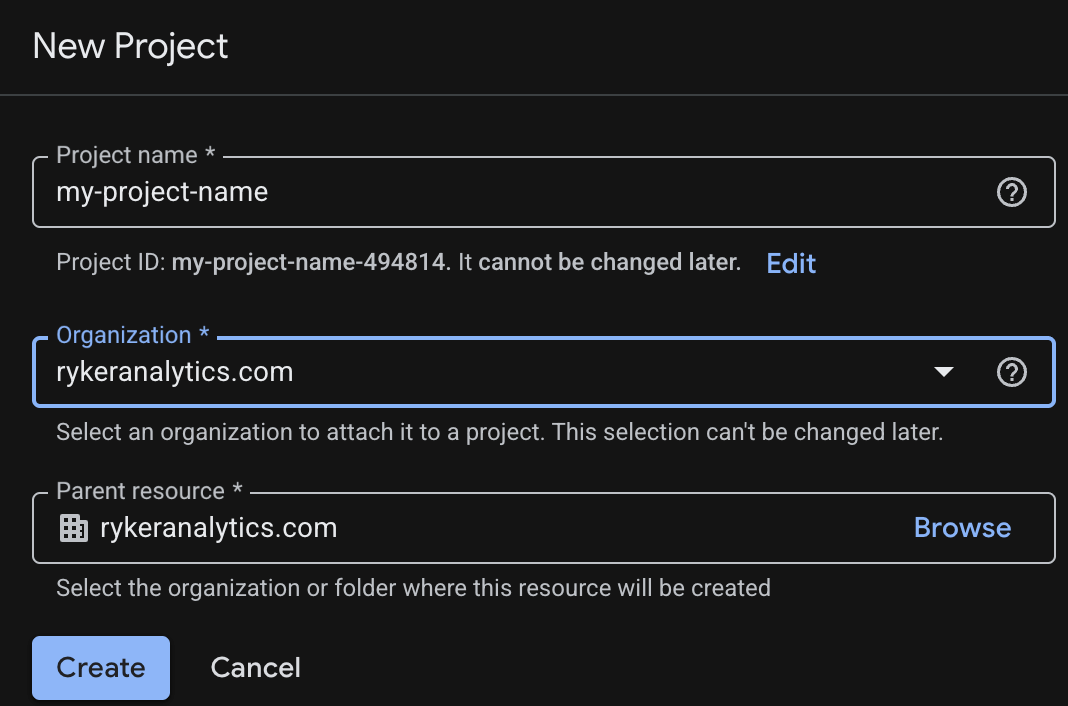
- Click the project dropdown at the top of the page (it will say “Select a project” if you have none), then click New Project.
- Name your project. Something like your-company-analytics works fine. The name does not affect anything functional.
- Click Create and wait a few seconds for the project to provision.
Step 2: Enable billing on the project
Google requires a billing account to be attached to any project that uses BigQuery, even if you never exceed the free tier. You will not be charged unless you go over the free limits, but the billing account has to be there.
- In the Google Cloud console, open the Navigation menu (the three horizontal lines in the top left) and click Billing.
- If you do not have a billing account, click Create account and follow the prompts. You will need to enter a payment method, but you will not be charged for normal GA4 export usage.
- Once a billing account exists, go back to your project and link it: Billing > Link a billing account.
⚠️ If you want to add a cost alert just to be safe, go to Billing > Budgets and alerts and set a budget of $1. You will get an email if you somehow get close to being charged.
Step 3: Enable the BigQuery API
- In the Google Cloud console, go to APIs and Services > Library.
- Search for BigQuery API.
- Click the result and then click Enable.
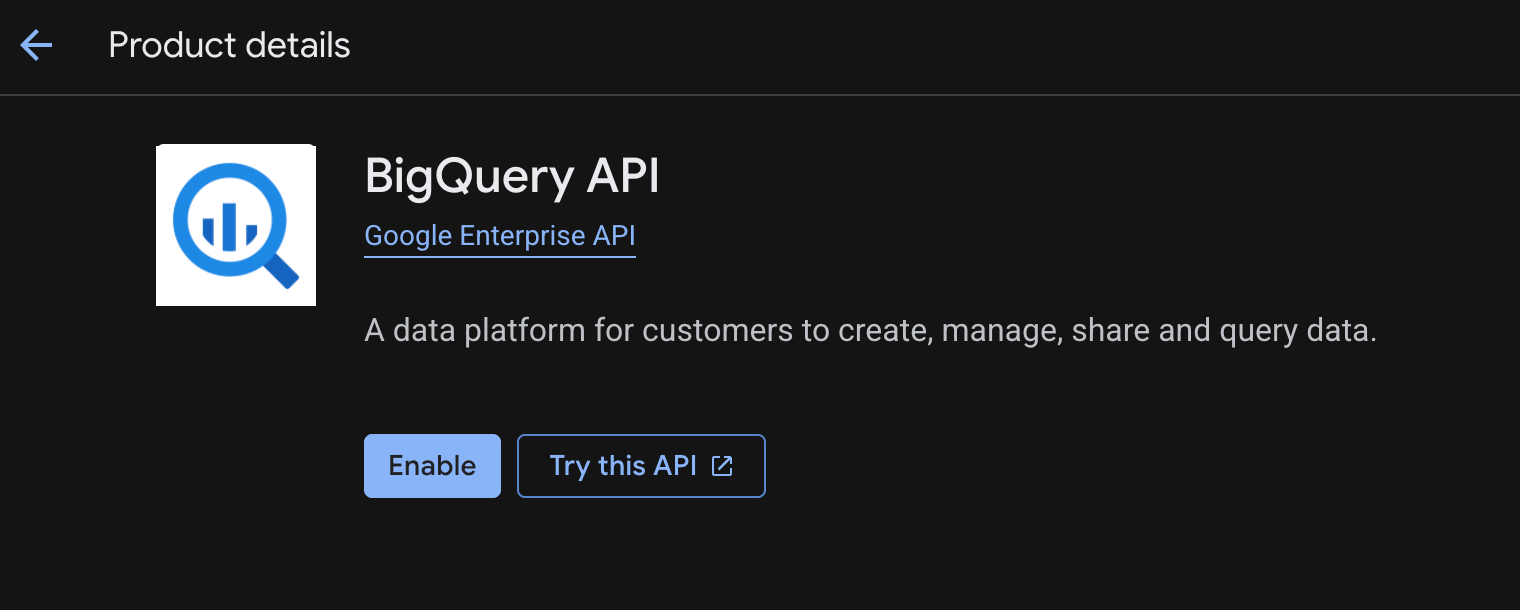
This takes about 30 seconds. In many cases the API is already enabled by default, so if you see “Manage” instead of “Enable,” you are already good.
Step 4: Link GA4 to BigQuery
This is the actual connection step. Everything up to this point was just getting Google Cloud ready.
- Open GA4 and go to your property.
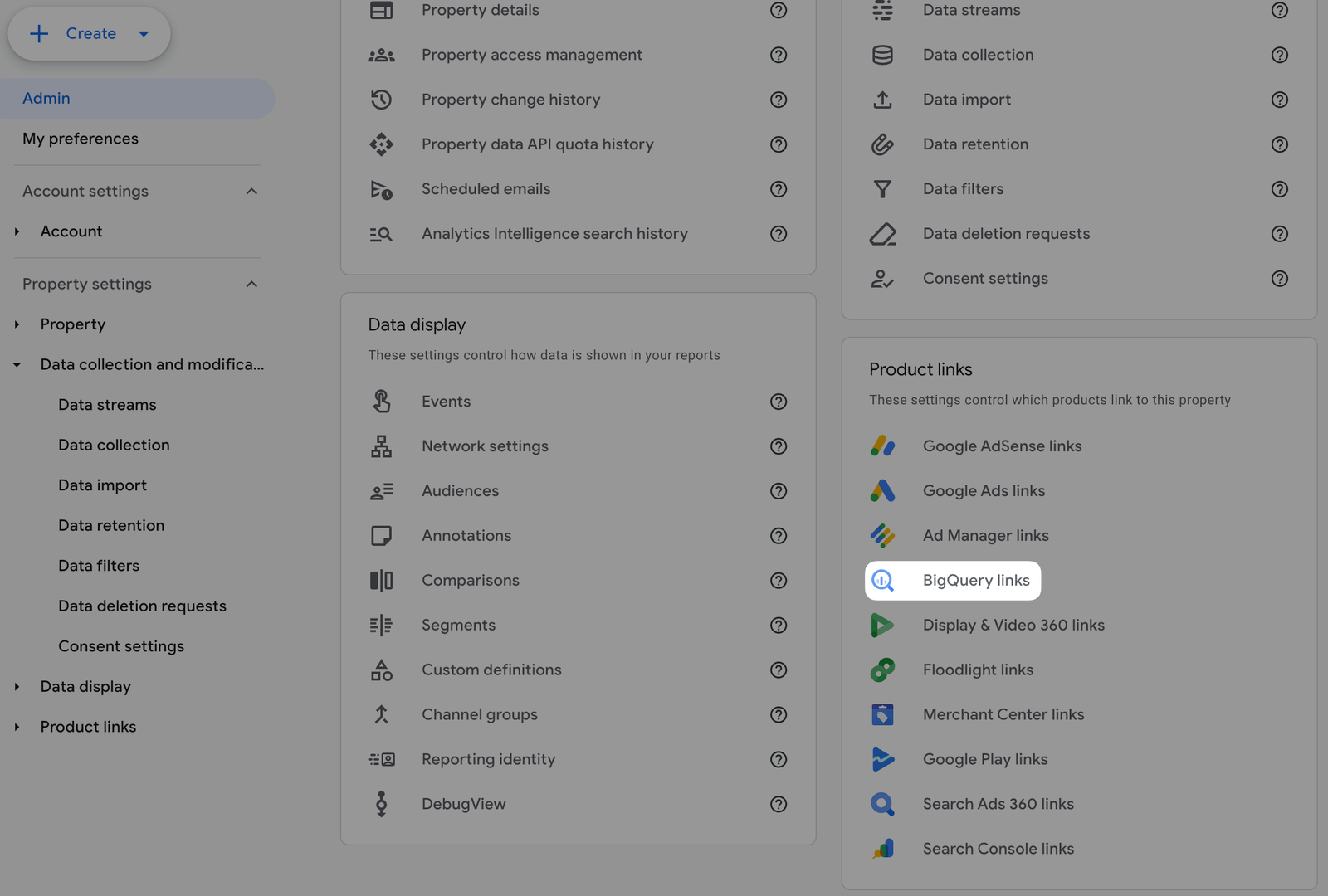
- Click the gear icon in the bottom left to open Admin.
- Under the Property column, scroll down and click BigQuery Links.
- Click Link in the top right.
- Choose your BigQuery project. Click Choose a BigQuery project, and your newly created Google Cloud project should appear. Select it.
- Select your data location. Choose the region closest to where your business operates. US and EU are the most common options. You cannot change this later without deleting the link and starting over, so pick carefully.
- Configure your export options. You will see two choices: Daily and Streaming. Select Daily to stay on the free tier. Daily exports land in BigQuery once per day, typically within a few hours after midnight in the data location’s timezone.
- Select which events to export. The default is all events. You can exclude specific events here if you want to reduce data volume, but for most setups, exporting everything is the right call.
- Click Submit.
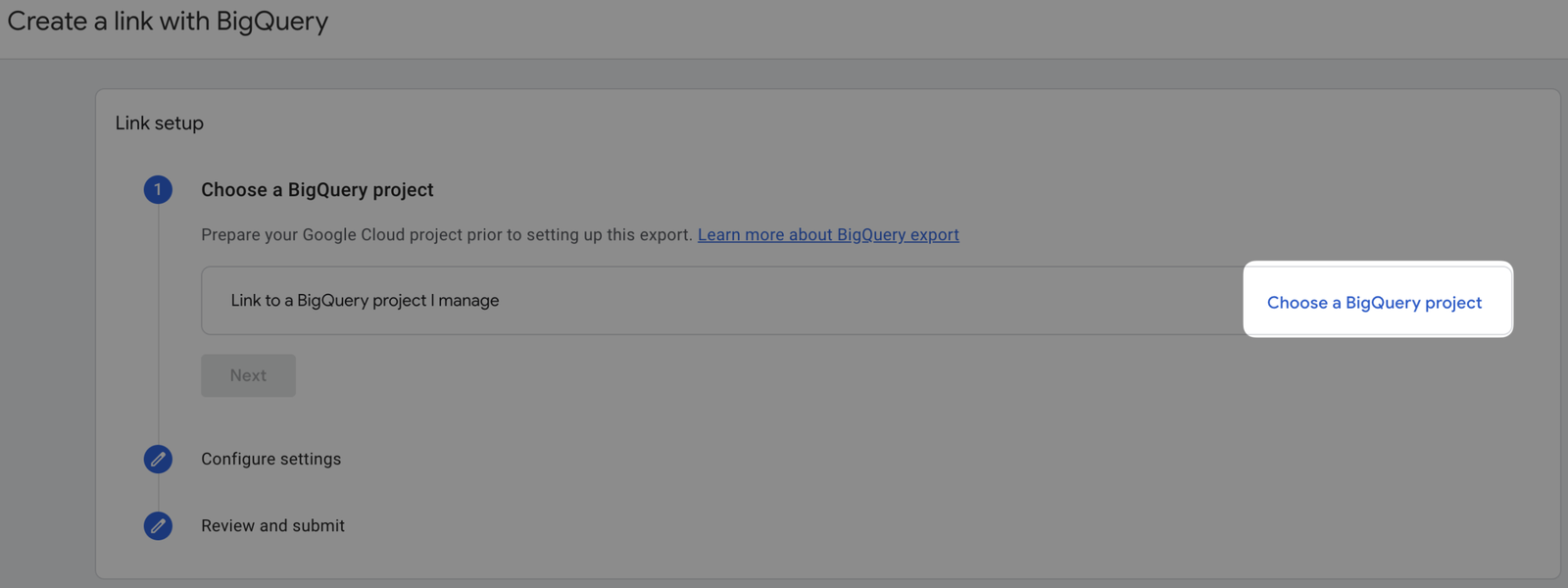
The link will now show as active in your BigQuery Links screen. The first export will run the following day. You will not see data in BigQuery immediately.
Step 5: Find your data in BigQuery
Once the first export runs, here is where your data lives and how it is structured.
- Go to console.cloud.google.com and open BigQuery from the navigation menu.
- In the left Explorer panel, expand your project. You will see a dataset named analytics_[your GA4 property ID].
- Expand that dataset and you will see tables named events_YYYYMMDD, one per day of data.
- Click any table and go to the Schema tab to see the full column structure.
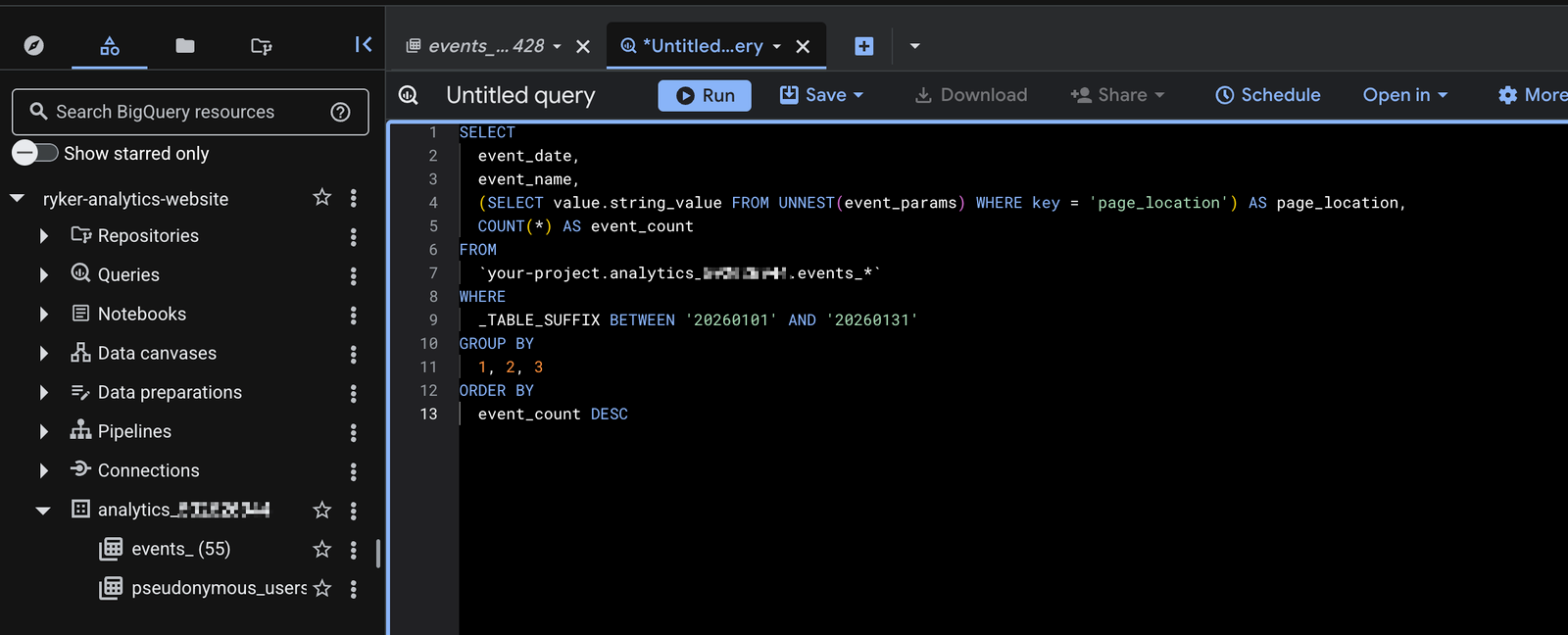
The GA4 BigQuery schema is nested. Events are rows, and parameters like page location, session ID, and revenue are stored in a repeated event_params field. You need to unnest them to query them. Here is a basic query to get you oriented:
SELECT
  event_date,
  event_name,
  (SELECT value.string_value FROM UNNEST(event_params) WHERE key = 'page_location') AS page_location,
  COUNT(*) AS event_count
FROM
  `your-project.analytics_XXXXXXXXX.events_*`
WHERE
  _TABLE_SUFFIX BETWEEN '20260101' AND '20260131'
GROUP BY
  1, 2, 3
ORDER BY
  event_count DESC
Replace your-project with your Google Cloud project ID and XXXXXXXXX with your GA4 property ID. The events_* wildcard queries across all daily tables, and _TABLE_SUFFIX lets you filter by date range without scanning everything.
Step 6: A few more useful starter queries
Here are a few more queries worth having on hand once your data starts flowing.
Count sessions by source and medium:
SELECT
  (SELECT value.string_value FROM UNNEST(event_params) WHERE key = 'source') AS source,
  (SELECT value.string_value FROM UNNEST(event_params) WHERE key = 'medium') AS medium,
  COUNT(DISTINCT (SELECT value.int_value FROM UNNEST(event_params) WHERE key = 'ga_session_id')) AS sessions
FROM
  `your-project.analytics_XXXXXXXXX.events_*`
WHERE
  event_name = 'session_start'
  AND _TABLE_SUFFIX BETWEEN '20260101' AND '20260131'
GROUP BY 1, 2
ORDER BY sessions DESC
Total revenue by date:
SELECT
  event_date,
  ROUND(SUM(ecommerce.purchase_revenue), 2) AS total_revenue
FROM
  `your-project.analytics_XXXXXXXXX.events_*`
WHERE
  event_name = 'purchase'
  AND _TABLE_SUFFIX BETWEEN '20260101' AND '20260131'
GROUP BY event_date
ORDER BY event_date ASC
These are intentionally simple. The GA4 schema has a lot of depth to it once you start working with user properties, items arrays for ecommerce, and cross-device stitching. But the queries above will confirm your export is working and give you something useful on day one.
Common mistakes
Not enabling billing and then wondering why the link won’t complete. BigQuery requires a billing account on the project even if you will never be charged. Skipping this step is the most common reason the setup gets stuck.
Picking the wrong data location. The region you choose when setting up the link is permanent. If you pick US-East and later realize you want EU for compliance reasons, you have to delete the link and start fresh, which means losing historical backfill. Think about this before clicking Submit.
Enabling streaming exports by accident and then getting a bill. Streaming inserts in BigQuery are not free. If you click “Streaming” during setup instead of “Daily,” you will start incurring charges immediately. For most use cases, daily exports are all you need. Check your export settings after setup to confirm.
Expecting data to appear immediately. The daily export runs once per day. If you set up the link at 9 AM on a Tuesday, you will not see data in BigQuery until Wednesday. This is normal. If you need near-real-time data, that requires the streaming export option.
Querying without a date filter and getting a massive bill. The events_* wildcard is useful, but running it without a _TABLE_SUFFIX filter will scan every single day of data in your dataset. If you have two years of data, that is a large query. Always filter by date range in the WHERE clause.
Forgetting to unnest event_params. This trips up almost everyone new to GA4 BigQuery. The event parameters are not flat columns. They live in a repeated record field and you have to use UNNEST(event_params) to access them. If your query returns nulls for page location or session ID, this is almost always why. See the queries above for the correct pattern.
If you are already running GA4 through Google Tag Manager, linking to BigQuery is the next logical step toward having data you can actually do something with. For more on getting GA4 set up correctly in the first place, check out the Google Ads conversion tracking guide in GTM and the form submission tracking guide to make sure the events feeding into BigQuery are clean before you start querying.
Want someone to set this up and make sure it’s done right?
At Ryker Analytics, we handle GA4 implementations, BigQuery exports, and custom reporting setups for businesses that need their data to actually be useful. If you want to skip the troubleshooting and get clean data flowing into BigQuery from day one, get in touch.
4 Responses
Ótimo post! Para vídeo com IA, confira Van Gogh Free AI Video Generator: . Van Gogh Free AI Video Generator
Buena lectura. Happy Shrimp (/) genera canciones desde texto. Happy Shrimp
Obrigado! WanVideoGen: para o estúdio Wan 3.0. WanVideoGen
Appreciate the depth in this piece. For speaker labels, timestamps and TXT/SRT/VTT export, see Gem Transcribe at . Gem Transcribe