
Why this matters
If you are running paid ads or doing any kind of lead generation, knowing whether your contact forms are actually submitting is not optional. Without form submission tracking in Google Tag Manager, you have no idea which traffic sources, campaigns, or pages are generating leads. This guide covers two reliable methods to track form submissions in GTM without needing a developer, and explains when to use each one.
Prerequisites
- Google Tag Manager container installed and published on your site
- A contact form or lead form on your site (Contact Form 7, Gravity Forms, Elementor forms, etc.)
- Access to GTM with publish permissions
- Optionally: a thank-you page or confirmation URL that loads after form submission
Two methods, one right answer for your setup
There are two standard ways to track form submissions in GTM. Which one you use depends on how your form is built.
Method 1: Thank-you page trigger. After a successful form submission, the user is redirected to a separate confirmation page (e.g., /thank-you or /contact/success). You fire your tag on that page load. This is the most reliable method when it is available.
Method 2: GTM Form Submit trigger. No redirect happens. The form submits and a success message appears on the same page. GTM has a built-in Form Submit listener that can detect this, no custom code required.
Start with Method 1 if your form redirects. Only use Method 2 if there is no redirect. The reason: page-based triggers are simpler, less prone to misfires, and easier to debug.
Method 1: Track form submissions using a thank-you page trigger
This method does not require any form-specific setup. You are simply tracking a page view on the URL that only loads after a successful submission.
Step 1: Confirm your thank-you page URL
Submit your form and look at the URL in the browser after submission. It should change to something like /thank-you/ or /contact/success/. If the URL does not change at all after submitting, your form does not redirect and you need to use Method 2 instead.
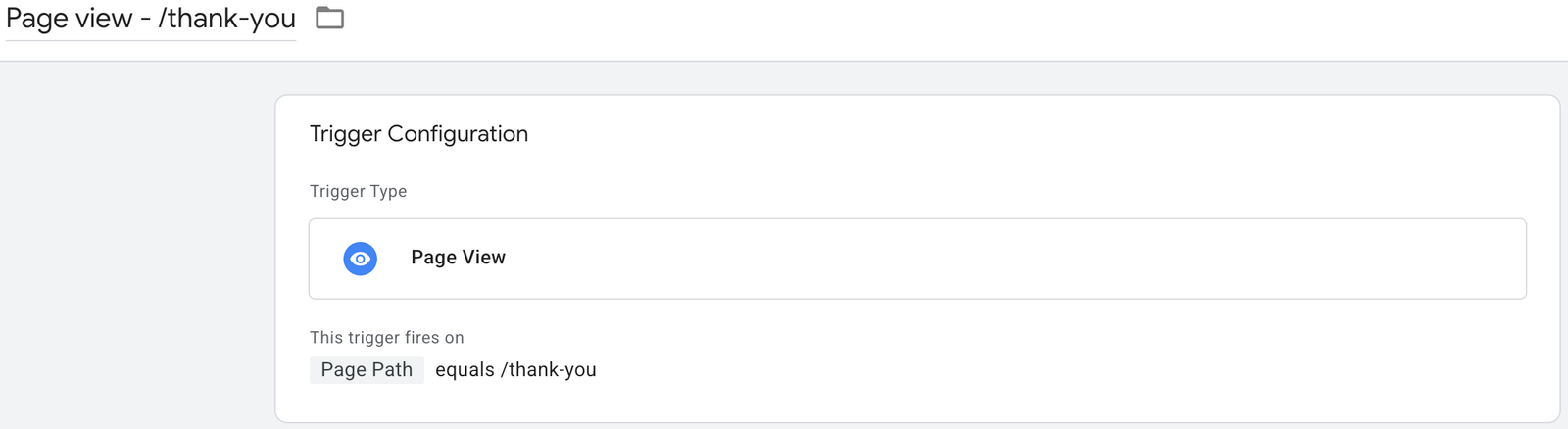
Step 2: Create a Page View trigger for the thank-you page
- In GTM, go to Triggers and click New.
- Select Page View as the trigger type.
- Change the firing condition from “All Page Views” to Some Page Views.
- Set the condition to: Page URL contains
/thank-you(adjust to match your actual URL). - Name the trigger: PV – Thank You Page
The prefix PV stands for Page View. Keeping a consistent prefix system in GTM means you can scan your trigger list and immediately understand what type of trigger you are looking at without opening each one.
Step 3: Create a GA4 event tag for the form submission
- Go to Tags and click New.
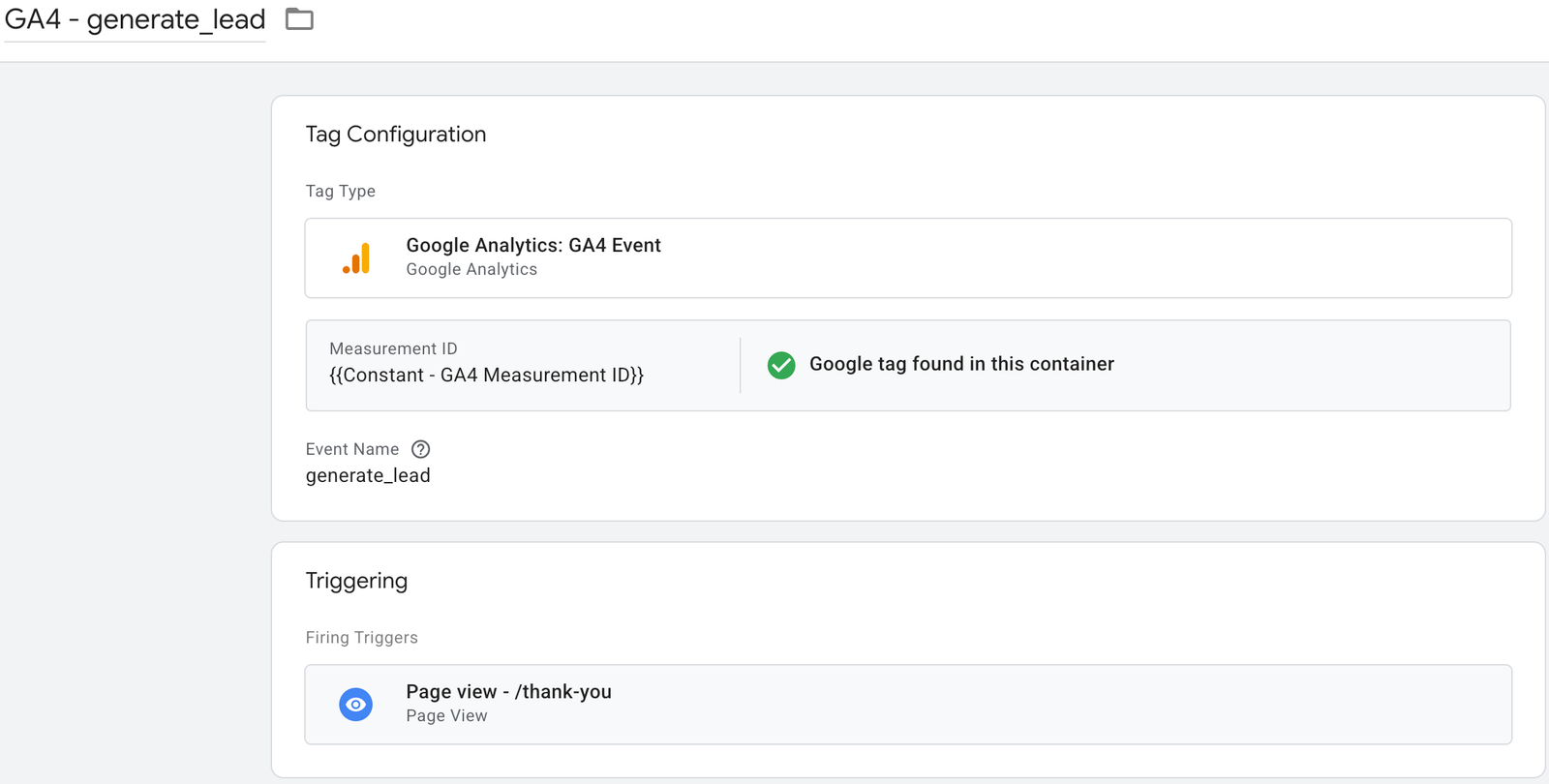
- Select Google Tag: Event (or Google Analytics: GA4 Event, depending on your GTM version).
- Set the Measurement ID to your GA4 property ID (format:
G-XXXXXXXXXX). - Set the Event Name to
generate_lead. This is the standard GA4 recommended event for form submissions. You can use a custom name likeform_submissionif you prefer, butgenerate_leadmaps cleanly to GA4’s standard reporting. - Under Triggering, select PV – Thank You Page.
- Name the tag: GA4 – generate_lead
- Save the tag.
If you are also tracking this as a Google Ads conversion, you would attach the same PV – Thank You Page trigger to your Google Ads Conversion Tracking tag. One trigger, multiple tags. See the guide on how to set up Google Ads conversion tracking in GTM for the full tag setup.
Method 2: Track form submissions using GTM’s Form Submit trigger
Use this method when your form submits without redirecting the user to a new page. Contact Form 7 on WordPress and many Elementor forms behave this way by default.
Step 1: Enable Form submission variables in GTM
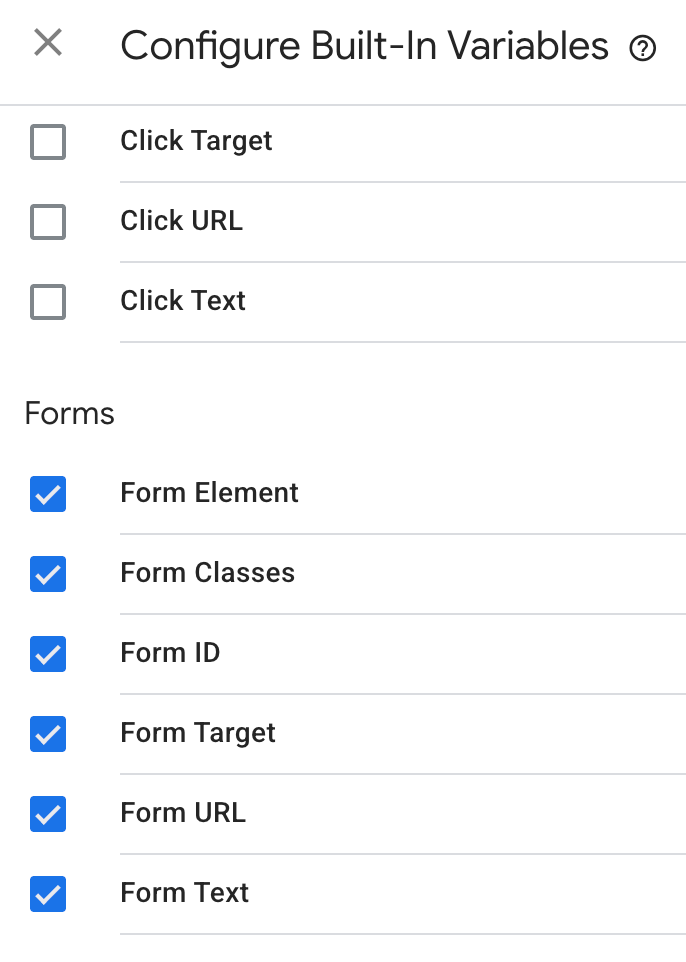
Before creating a Form Submit trigger, you need to make sure GTM’s built-in form variables are enabled. These give you access to form element data inside GTM.
- In GTM, go to Variables in the left nav.
- Under Built-In Variables, click Configure.
- Scroll to the Forms section and enable all of them: Form Element, Form Classes, Form ID, Form Target, Form Text, Form URL.
Step 2: Use GTM Preview to identify your form
Before building the trigger, you need to confirm that GTM is detecting your form submission at all, and identify a unique attribute you can filter on to avoid tracking unintended forms.
- Click Preview in GTM and connect to your site.
- Submit your form on the site.
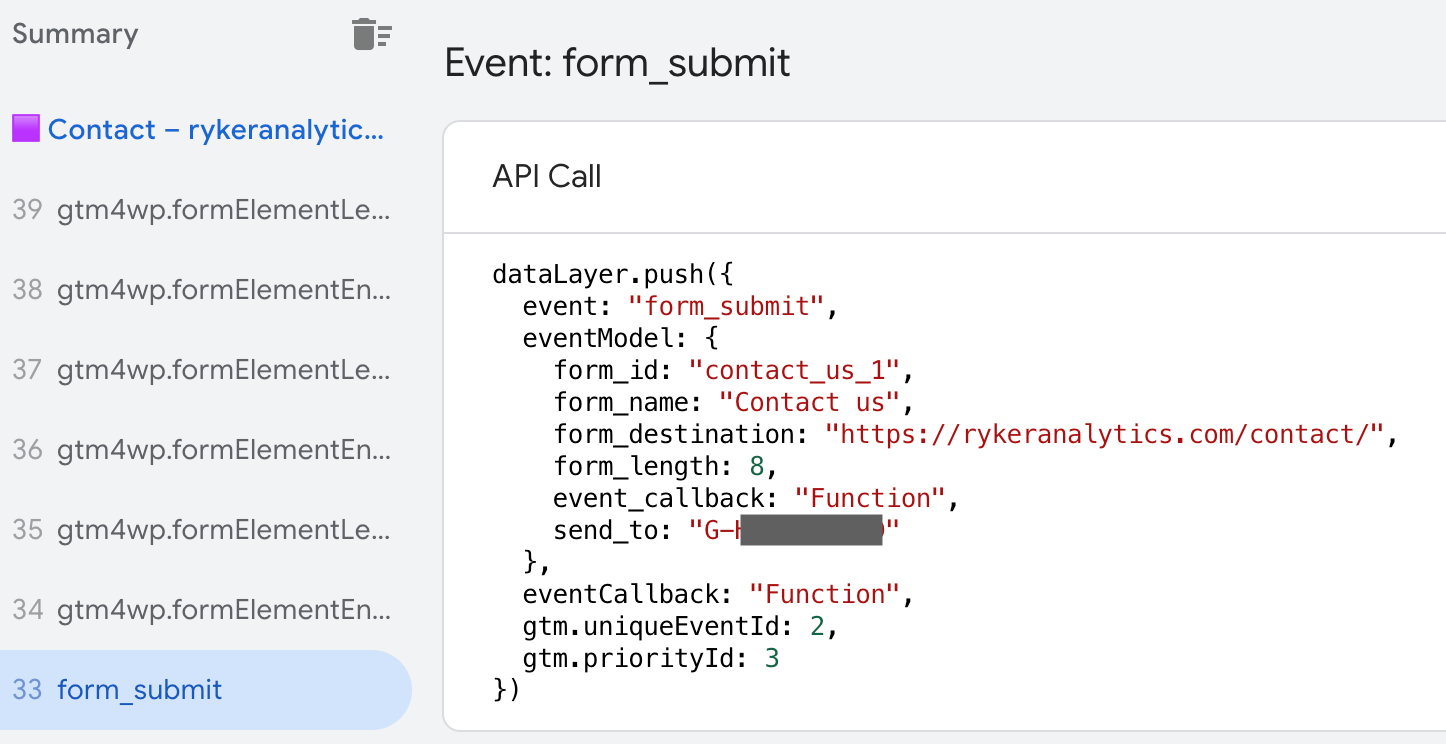
- In the GTM debug panel, look for a gtm.formSubmit event in the left sidebar. If you see it, GTM is detecting the form. If you do not see it, your form may be using AJAX submission and the standard Form Submit trigger will not work reliably. See the note below.
- Click on the gtm.formSubmit event and open the Variables tab. Note the value of Form ID or Form Classes. You will use this to make your trigger specific to this form only.
Step 3: Create the Form Submit trigger
- Go to Triggers and click New.
- Select Form Submission as the trigger type.
- Check Wait for Tags and Check Validation. These options improve reliability: Wait for Tags ensures your tags fire before the page navigates away, and Check Validation prevents the trigger from firing on failed submissions.
- Change the firing condition to Some Forms.
- Set a condition using the Form ID or Form Classes value you identified in Preview. For example: Form ID equals
contact-form. This prevents the trigger from firing on every form on the site (search bars, newsletter sign-ups, etc.). - Name the trigger: FS – Contact Form Submit
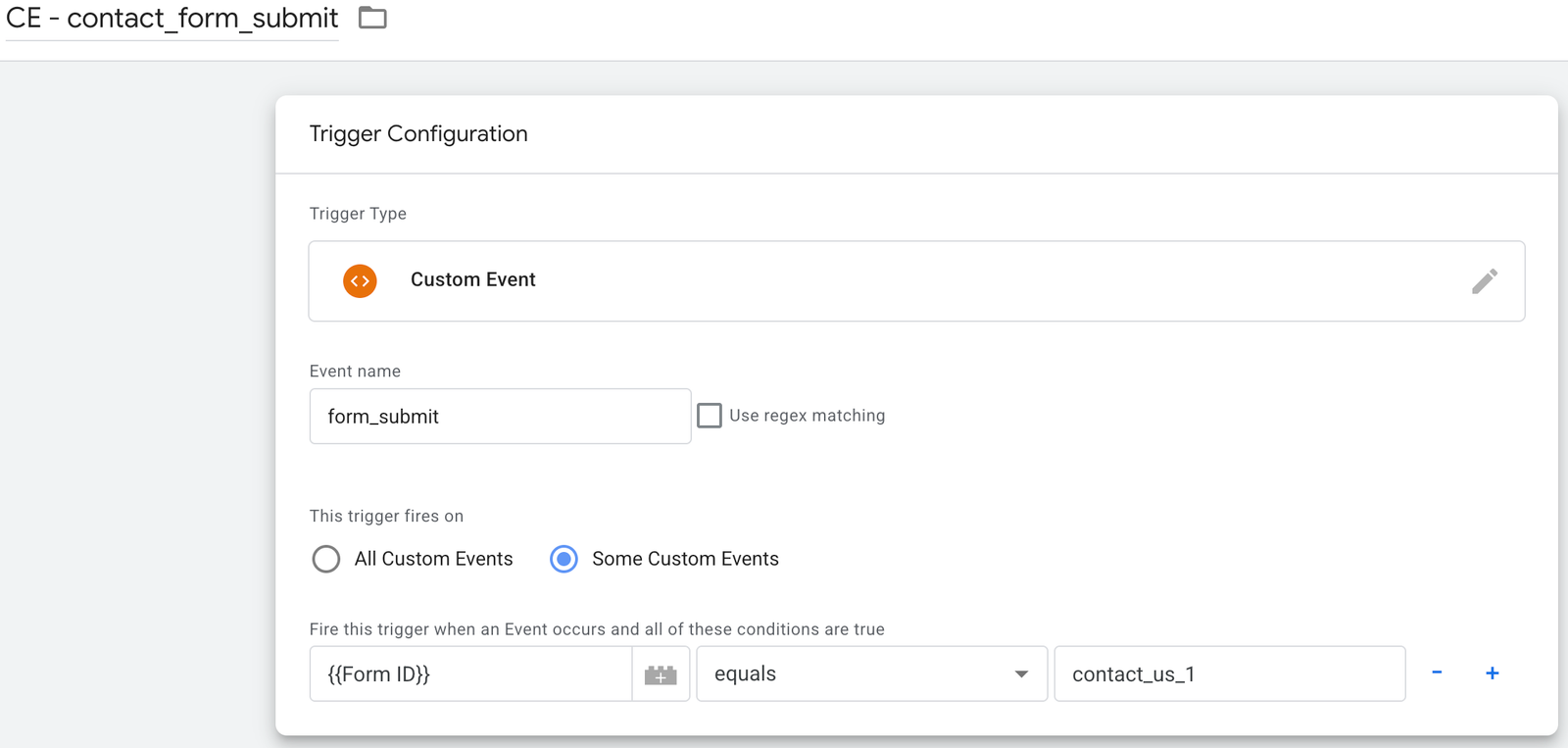
The prefix FS stands for Form Submit. Consistent with the same naming logic used across your GTM container.
Step 4: Create the GA4 event tag
Follow the same tag setup as in Method 1, but use FS – Contact Form Submit as the trigger instead of the page view trigger.
- Go to Tags and click New.
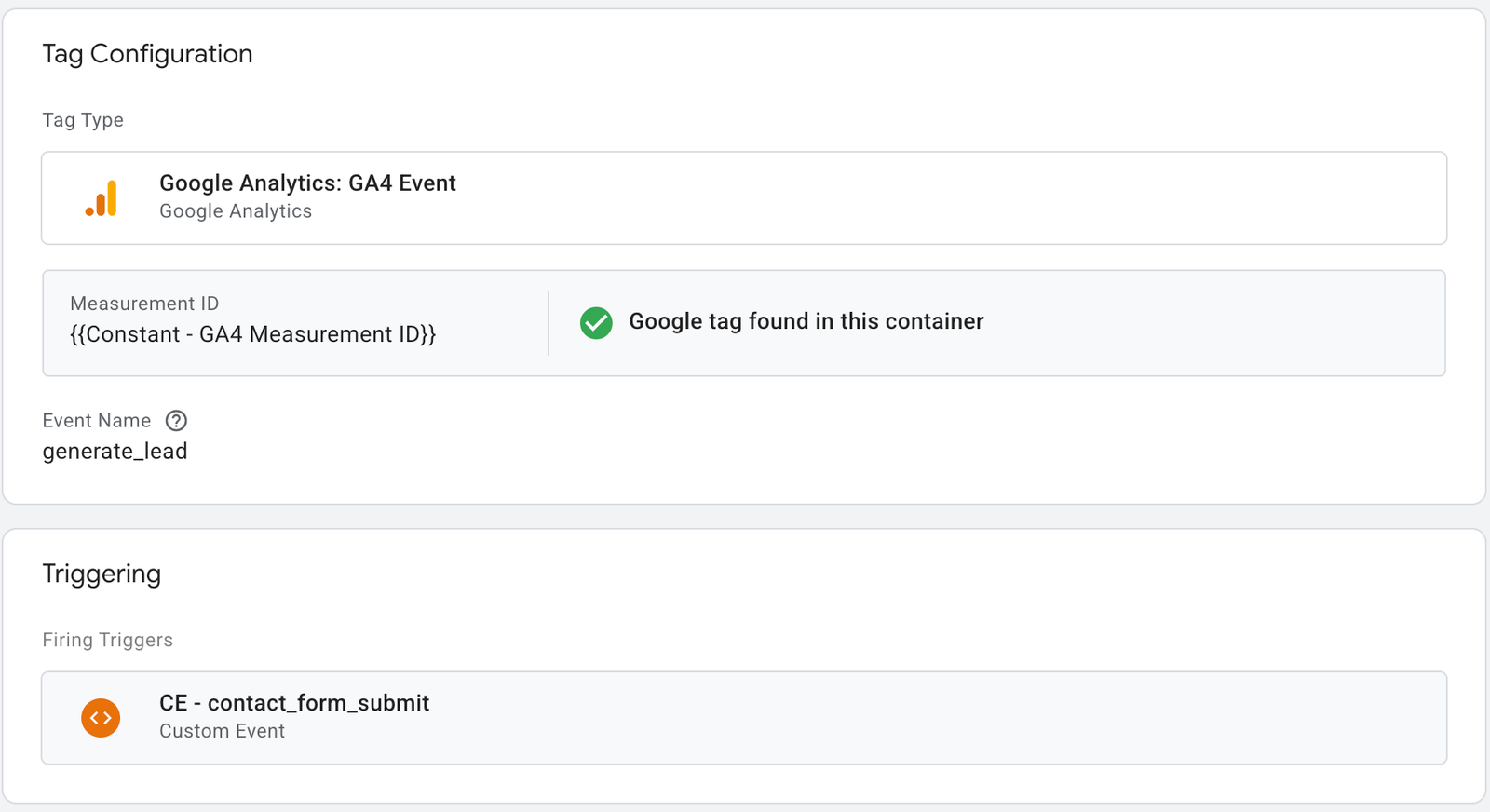
- Select Google Tag: Event.
- Set the Measurement ID to your GA4 property ID.
- Set the Event Name to
generate_lead. - Under Triggering, select FS – Contact Form Submit.
- Name the tag: GA4 – generate_lead
- Save the tag.
A note on AJAX forms
Some form plugins submit via AJAX, meaning the page does not reload and GTM’s native Form Submit listener may not fire. Contact Form 7 is the most common example of this. If your gtm.formSubmit event is not appearing in Preview after you submit the form, AJAX is likely the reason.
The fix depends on your form plugin. Contact Form 7, for example, fires a custom JavaScript event called wpcf7mailsent on successful submission. You can use a Custom Event trigger in GTM that listens for this event specifically, but you will need a small dataLayer push added to your site to bridge the CF7 event to GTM. That setup will be covered in a separate post. If you are not comfortable adding that code yourself, get in touch and I can handle it.
Verify in GTM Preview before publishing
- Open GTM Preview and connect to your site.
- Submit your form.
- In the debug panel, confirm your tag (GA4 – generate_lead) appears under Tags Fired on the correct event (either the thank-you page view or the gtm.formSubmit event).
- Confirm it fires once per submission and does not fire on page load or other interactions.
- If using Method 2, submit the form multiple times and confirm the tag fires each time but not between submissions.
Do not publish until you have confirmed the tag fires exactly when it should and not when it should not.
Publish and confirm in GA4
- In GTM, click Submit.
- Add a version name like Add GA4 form submission tracking.
- Click Publish.
- In GA4, go to Reports > Realtime and submit a test form on your live site. You should see a
generate_leadevent appear within a few seconds. - To use this as a conversion in GA4, go to Admin > Conversions and mark
generate_leadas a conversion event.
Common mistakes
Using “All Forms” as the trigger condition. If you set your Form Submit trigger to fire on all forms, it will fire on every form interaction on the site, including search bars, newsletter sign-ups, and login forms. Always filter to a specific Form ID or Form Classes value.
Not enabling the Check Validation option. Without this, your Form Submit trigger can fire even when the form fails validation (e.g., a required field is empty). That inflates your lead count with submissions that never actually went through.
Assuming Method 2 works on AJAX forms. GTM’s native Form Submit trigger listens for a standard HTML form submit event. Many modern form plugins bypass this entirely with AJAX. If you do not see gtm.formSubmit in Preview, stop and investigate before building your trigger.
Tracking the form page view instead of the submission. A tag firing on the page that contains the form is not the same as tracking when someone submits it. Make sure your tag fires on the thank-you page or the form submit event, not on the page that simply contains the form.
Not verifying in GA4 Realtime after publishing. GTM Preview only confirms the tag fires in a debug session. Confirming in GA4 Realtime after publishing closes the loop and makes sure the hit is actually being received by GA4.
Need help getting form tracking set up correctly?
Form tracking that misfires or misses submissions gives you bad lead data and bad decisions downstream. If you want this set up correctly the first time, or you need someone to audit what is currently firing on your site, get in touch.
2 Responses
Très bon article ! J’utilise CV Builder Free sur pour ce type de besoin. CV Builder Free
Très bon article ! Pour la vidéo IA ciné, essayez MiniMax H3 Video Generator : /. MiniMax H3 Video Generator